Instalacja PrestaBlog
Ten przewodnik przeprowadzi Cię przez instalację PrestaBlog w sklepie PrestaShop. Moduł jest kompatybilny ze wszystkimi wersjami PrestaShop, od 1.6 do 9.x.
Ta dokumentacja opisuje najnowszą wersję PrestaBlog, stworzoną dla PrestaShop 8 i 9. Jeśli Twój sklep nadal działa na PrestaShop 1.6 lub 1.7, korzystasz ze starszej wersji modułu: niektóre funkcje opisane tutaj mogą być niedostępne w Twojej instalacji.
Jeśli nie masz pewności, czy dana opcja istnieje w Twojej wersji, najprościej skontaktować się z naszym wsparciem przed wprowadzeniem jakichkolwiek zmian: szybko potwierdzimy, czy dana opcja jest dostępna w Twojej wersji.
Wymagania wstępne i kompatybilność
PrestaBlog nie ma szczególnych wymagań poza tymi, które są wymagane przez sam PrestaShop.
Jeśli Twój hosting jest kompatybilny z Twoją wersją PrestaShop, będzie również kompatybilny z PrestaBlog. Moduł opiera się wyłącznie na natywnych mechanizmach PrestaShop i stosuje się do jego standardów technicznych.
Dla sklepów na PrestaShop 8 lub 9 zaleca się używanie wersji PHP rekomendowanej przez PrestaShop (od PHP 8.1), która jest również minimalną wersją wymaganą przez PrestaBlog. Zalecenie to nie dotyczy wersji PrestaBlog kompatybilnych z PrestaShop 1.6 i 1.7.
Dla odniesienia, oficjalne wymagania PrestaShop są dostępne dla każdej wersji:
-
PrestaShop 9
Oficjalna dokumentacja PrestaShop 9 -
PrestaShop 8
Oficjalna dokumentacja PrestaShop 8 -
PrestaShop 1.6 to 1.7
Oficjalna dokumentacja PrestaShop 1.7
PrestaShop zaleca co najmniej 512 MB dla ustawienia PHP memory_limit.
W praktyce 512 MB to tylko minimalna baza. Dla naprawdę płynnie działającego sklepu PrestaShop zalecamy 1024 MB.
512 MB = minimum teoretyczne
1024 MB = konfiguracja naprawdę komfortowa
Dobre praktyki przed instalacją
Jak przy każdej instalacji modułu PrestaShop, zaleca się kilka ogólnych dobrych praktyk.
-
Miej aktualną kopię zapasową
Pełna kopia zapasowa strony (pliki i baza danych) to standard przed każdą instalacją lub aktualizacją. -
Upewnij się, że strona działa poprawnie
Sprawnie działająca strona pozwala na prostą i bezproblemową instalację. -
W razie problemów użyj środowiska testowego
Jeśli pojawi się problem (często związany z bardzo inwazyjnymi modułami firm trzecich, zwłaszcza SEO), środowisko testowe pomoże szybko zidentyfikować jego źródło.
Instalacja przez PrestaShop Marketplace
Zalecana metoda - W nowszych wersjach PrestaShop (8 i 9) PrestaBlog można zainstalować bezpośrednio z back-office przez zintegrowany Marketplace.
Ta metoda pozwala automatycznie zainstalować moduł z listy zakupionych produktów na PrestaShop Addons.
Kroki instalacji
- Wejdź do back-office PrestaShop
- Przejdź do Moduły > Marketplace lub Moduły > Menedżer modułów
- Otwórz listę zakupionych produktów
- Wybierz PrestaBlog i rozpocznij instalację
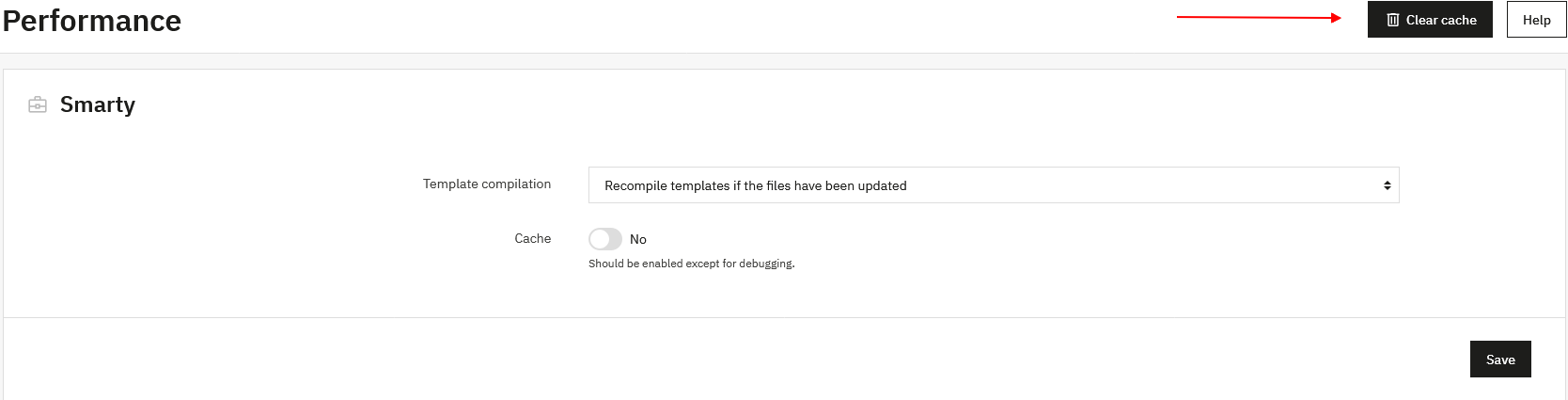
- Po zakończeniu instalacji wyczyść cache
Jak wyczyścić cache?
Przejdź do Parametry zaawansowane > Wydajność > Wyczyść pamięć podręczną, aby prawidłowo zakończyć instalację.
Instalacja z pliku ZIP
Jeśli automatyczna instalacja przez Marketplace nie jest dostępna lub używasz starszych wersji PrestaShop (1.6 i 1.7), instalację można wykonać przy użyciu archiwum ZIP dostarczonego na PrestaShop Addons.
Kroki instalacji
- Pobierz PrestaBlog z sekcji Produkty na PrestaShop Addons
- Wejdź do back-office PrestaShop
- Przejdź do Moduły > Menedżer modułów
- Kliknij Prześlij moduł
- Prześlij plik ZIP
- Rozpocznij instalację
- Po instalacji wyczyść cache
upload_max_filesize i post_max_size.
Weryfikacja instalacji
Po instalacji sprawdź:
- Moduł PrestaBlog widnieje na liście zainstalowanych modułów
- Moduł jest poprawnie włączony (zielony przycisk)
- Dostęp do bloga działa we front-office
- Interfejs administracyjny modułu jest dostępny