Depanare
Această secțiune listează cele mai frecvente probleme întâlnite cu PrestaBlog și soluțiile lor. Dacă nu găsești răspunsul la problema ta aici, nu ezita să contactezi suportul nostru.
Probleme de afișare
Iconurile nu se afișează
PrestaBlog folosește Material Icons, fontul de iconuri implicit al PrestaShop, pentru a asigura compatibilitate maximă cu majoritatea temelor din marketplace.
Cauze posibile:
- Tema ta a înlocuit Material Icons cu un alt font de iconuri
- Dezvoltatorul temei a eliminat accesul la această funcționalitate nativă PrestaShop
- Un conflict CSS împiedică afișarea iconurilor
Soluție:
Mergi la configurare > global > în partea de jos, în partea stângă a configurării, găsește „Adaugă Material Icons în header” și activează-l, apoi actualizează. Nu uita să reimprospatezi cache-ul magazinului în setări avansate > performanță și browserul dacă nu vezi nicio schimbare.
Articolul meu publicat nu apare
Ai publicat un articol dar acesta nu este vizibil pe front-office-ul blogului.
Verificări de efectuat:
- Vizibilitatea categoriei: verifică că categoria articolului este vizibilă vizitatorilor sau grupului de clienți relevant. Mergi la Gestionarea conținutului > Categorii pentru a verifica setările de vizibilitate.
- Statusul articolului: asigură-te că articolul este setat pe statusul „Publicat” și nu ciornă
- Data publicării: dacă ai programat o publicare viitoare, articolul va fi vizibil doar de la acea dată
- Cache-ul PrestaShop: golește cache-ul magazinului în Parametri avansați > Performanță
Imaginile nu se afișează corect
Imaginile din articolele sau categoriile tale nu se afișează sau apar distorsionate.
Soluții:
- Verifică dimensiunile: asigură-te că imaginile încărcate respectă dimensiunile configurate în Configurare > Imagini
- Regenerează imaginile: folosește instrumentul de regenerare imagini după modificarea dimensiunilor în configurare
- Permisiuni de scriere: verifică că folderul
modules/prestablog/images/are permisiuni de scriere corespunzătoare (chmod 755 sau 775)
Erori frecvente
Eroare 404 pe pagina principală a blogului
Erorile 404 pe pagina principală a blogului sunt de obicei cauzate de un conflict cu un modul de blog vechi sau un modul care modifică URL-urile magazinului.
Verifică următoarele situații:
- Modul de blog vechi: un modul de blog a fost dezinstalat incorect sau este încă instalat pe magazin
- Fișierul .htaccess: o intrare „blog” este prezentă în fișierul .htaccess de la rădăcina FTP-ului
- Folderul blog: un folder „blog” există la rădăcina instalării PrestaShop
- Modul de rescriere URL: un modul terț modifică URL-urile într-un mod incompatibil cu PrestaBlog
În modul multishop, URL-ul blogului trebuie să fie identic pe toate magazinele. Vezi secțiunea Multishop pentru mai multe detalii.
Eroare 404 pe paginile blogului
Erorile 404 pe paginile interne ale blogului (articole, categorii) provin de obicei dintr-un conflict cu un modul terț care interferează cu controlerele de URL ale PrestaShop.
Soluții:
- Identifică modulul responsabil dezactivând temporar modulele de rescriere URL
- Contactează dezvoltatorul modulului pentru a solicita o excepție sau o actualizare de compatibilitate
- Verifică că URL-urile PrestaBlog nu intră în conflict cu alte pagini din magazin
Eroare 404 pe o categorie
Dacă pagina principală a blogului se afișează corect dar o categorie returnează o eroare 404, verifică în primul rând permisiunile de grup configurate pentru acea categorie.
În editarea categoriei, secțiunea „Permisiuni", cele trei grupuri trebuie să fie bifate: Vizitator, Invitat și Client. Dacă este selectat doar grupul „Vizitator", clienții conectați și invitații primesc o eroare 404 la tentativa de a accesa acea categorie.
Pentru a remedia situația, editează categoria respectivă și bifează cele trei grupuri.
Eroare la instalare sau actualizare
Dacă întâlnești o eroare la instalarea sau actualizarea modulului, serverul probabil nu este configurat corect pentru procesarea fișierelor.
Verifică configurarea serverului:
În back-office, mergi la Parametri avansați > Informații > Informații server și verifică următoarele valori:
- Limita de memorie (memory_limit): 512M minim recomandat
- Timpul maxim de execuție (max_execution_time): 30 secunde minim
- Dimensiunea maximă a fișierului încărcat (upload_max_filesize): 20M minim
- Dimensiunea maximă a datelor POST (post_max_size): 20M minim
Pentru a modifica aceste valori:
Editează fișierul php.ini cu următoarele valori:
                        memory_limit = 512M
                        upload_max_filesize = 20M
                        post_max_size = 20M
                        max_execution_time = 30
Ajutor hosting
Procedura de modificare a php.ini variază în funcție de gazdă. Consultă documentația gazdei sau contactează suportul tehnic pentru asistență.
Nu pot actualiza modulul
Dacă nu poți descărca ultima versiune a modulului, verifică eligibilitatea pentru actualizări.
Cum funcționează actualizările pe Addons:
La achiziționarea unui modul pe PrestaShop Addons, opțiunea Business Care este inclusă automat. Beneficiezi de:
- Suport post-vânzare nelimitat timp de 1 an
- Acces la toate actualizările modulului timp de 1 an
Opțiunea Business Care nu include personalizarea și dezvoltarea specifică, serviciile de instalare și actualizare, nici rezolvarea problemelor legate de servicii terțe, hosting sau server.
După primul an:
După expirarea perioadei de un an, poți reînnoi opțiunea Business Care din contul tău de client PrestaShop Addons pentru a continua să beneficiezi de suport și actualizări.
Gestionarea punctelor de ancorare (hook)
În caz de funcționare defectuoasă (bloc lipsă, afișare incompletă, fișiere CSS sau JS neîncărcate, link de meniu lipsă), prima verificare este să te asiguri că PrestaBlog este atașat corect la hook-urile așteptate.
Verificare automată și corectare
Începând cu versiunea v5.4.8, este integrat un sistem de verificare automată. Pe pagina de start a blogului, dacă lipsesc anumite hook-uri, este afișat un mesaj de alertă. Este suficient să faci clic pe butonul "Actualizează hook-urile" pentru a restabili automat punctele de ancorare necesare.
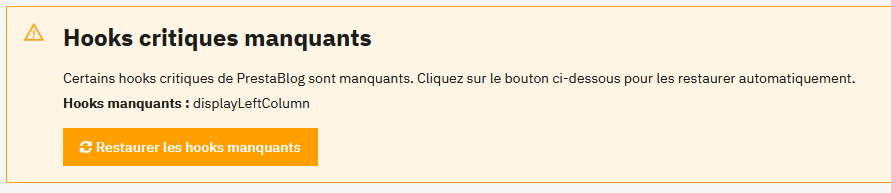
Acces la gestionarea hook-urilor
Din administrarea PrestaBlog, fă clic pe butonul "Puncte de ancorare" situat în partea dreaptă sus a ecranului. Vei fi redirecționat către pagina de gestionare a pozițiilor din PrestaShop, unde poți verifica și modifica hook-urile la care este atașat modulul.
Hook-uri de verificat
displayHeaderdisplayBackOfficeHeaderdisplayBeforeBodyClosingTagdisplayHomedisplaySliderdisplayRatingdisplayRightColumndisplayLeftColumndisplayFooterdisplayPrestaBlogListdisplayNav2displayFooterProduct
Dacă lipsește un hook:
- Fă clic pe "Transplantează un modul" din lista de hook-uri (dreapta sus)
- Verifică dacă modulul selectat este PrestaBlog
- Găsește hook-ul în lista "Transplantează modulul în"
- Salvează
Goliți cache-ul
După orice modificare, nu uita să golești cache-ul în Parametri avansați > Performanță.
Performanță
Dacă blogul se încarcă greu, sunt posibile mai multe optimizări.
Optimizări recomandate:
- Activează cache-ul PrestaShop: în Parametri avansați > Performanță, activează cache-ul și compilarea template-urilor
- Optimizează-ți imaginile: folosește imagini la dimensiunile corecte și comprimate înainte de încărcare
- Limitează articolele per pagină: în configurarea PrestaBlog, reduce numărul de articole afișate per pagină dacă este necesar
- Verifică-ți hostingul: un hosting partajat de nivel scăzut poate afecta performanța
Configurare Multishop
În modul multishop, PrestaBlog funcționează cu un blog per magazin. Iată punctele importante de reținut pentru o configurare corectă.
Principii de funcționare:
- Fiecare magazin are propriul blog cu propriile articole și categorii
- Înainte de orice configurare, selectează magazinul relevant din selectorul din dreapta sus al back-office-ului
- Configurațiile sunt independente pentru fiecare magazin
URL-ul blogului (ex.: „blog”) trebuie să fie identic pe toate magazinele. PrestaShop consideră acest URL ca fiind controlerul modulului: nu poți avea două controlere diferite pentru același modul. Prin urmare, folosește același URL de blog pe toate magazinele pentru a evita erorile 404.
Exemplu de configurare corectă:
- Magazin FR: www.mystore.fr/blog
- Magazin EN: www.mystore.com/blog
- Magazin ES: www.mystore.es/blog
Exemplu de configurare incorectă:
- Magazin FR: www.mystore.fr/blog
- Magazin EN: www.mystore.com/news (eroare 404)
Contactează suportul
Dacă ai sugestii privind PrestaBlog, nu ezita să ne trimiți un comentariu prin formularul de contact de pe site-ul Addons: https://addons.prestashop.com/en/contact-us?id_product=4731
Dacă nu ai găsit în această documentație răspunsurile la întrebările tale, suntem disponibili să te ajutăm.
Suport rapid și reactiv
Echipa noastră răspunde de obicei în 15 minute în timpul orelor de program.
Asistent de documentație
Un asistent IA este disponibil pe toate paginile acestei documentații (buton jos în dreapta). Pune întrebarea: caută răspunsul în documentația PrestaBlog și îți indică secțiunile relevante.
Dacă documentația nu este suficientă, un buton din asistent îți permite să ne contactezi prin site-ul PrestaShop Addons. Poți de asemenea să ceri un rezumat al conversației, gata de lipit în formular, ca suportul să aibă deja contextul.
Cum să ne contactezi:
- Prin PrestaShop Addons: autentifică-te în contul Addons și mergi la pagina de contact pentru PrestaBlog
- Informații utile de furnizat: versiunea PrestaShop, versiunea PrestaBlog, descrierea detaliată a problemei, capturi de ecran dacă este posibil
Înainte de a contacta suportul
- Verifică că folosești ultima versiune de PrestaBlog
- Pune mai întâi întrebarea asistentului (buton jos în dreapta)
- Dacă nu găsește răspunsul, folosește butonul de contact Addons din asistent
- Testează dezactivând temporar alte module pentru a identifica un potențial conflict